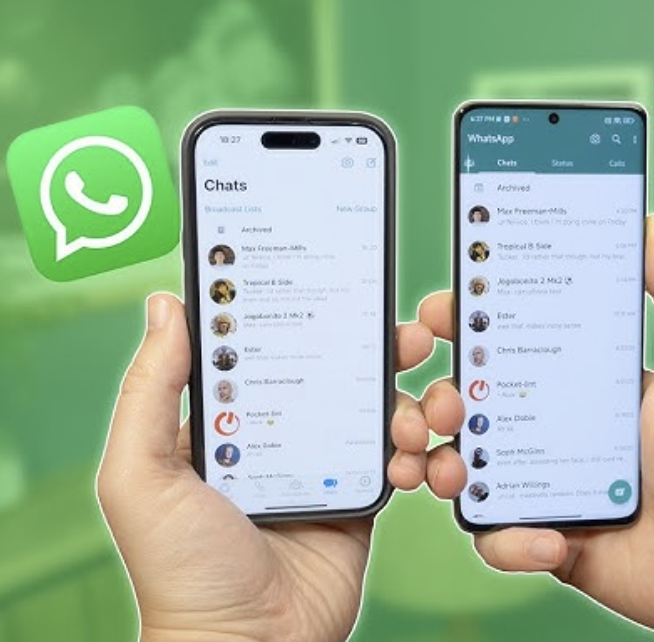

Want to use one WhatsApp account on multiple phones without creating a second account? WhatsApp includes a built-in Linked Devices feature that allows you to connect additional phones to your main account.
This is useful if you have a personal phone and a second device, or if you regularly switch between two phones. You don’t need to create another WhatsApp account just to access the same chats on another compatible device.
Can You Use One WhatsApp Account on Multiple Phones?
Yes. WhatsApp supports using the same account on additional phones through its Linked Devices feature.
Your primary phone remains the device where the account is registered, while additional phones can be linked as companion devices.
Your chats can then be accessed from the linked devices without repeatedly registering the same phone number.
How to Use One WhatsApp Account on Two Phones
Follow these steps to link a second phone.
Step 1: Install WhatsApp on the Second Phone
Download and install the latest official WhatsApp application on your second phone.
Open WhatsApp after installation.
Step 2: Select the Linking Option
On the second phone, start the setup process.
Instead of entering your phone number to create a new account, look for the option to link the device as a companion device.
WhatsApp will display a QR code.
Step 3: Open WhatsApp on Your Main Phone
Now take your primary phone, where your WhatsApp account is already active.
Open WhatsApp and go to:
Settings → Linked Devices → Link a Device
Depending on your Android or iPhone version, the menu may look slightly different.
Step 4: Scan the QR Code
Use the main phone to scan the QR code displayed on the second phone.
WhatsApp will then connect the second device to your account.
Step 5: Wait for Your Chats to Sync
After linking, WhatsApp will synchronize your account information and chats with the second device.
The amount of time required can depend on your internet connection and the amount of chat history being synchronized.
How Many Phones Can Use One WhatsApp Account?
WhatsApp allows you to link additional devices to your primary account.
The exact device limit and supported behavior can change as WhatsApp updates its Linked Devices system, so check the current WhatsApp app if you need to connect several phones.
Does the Main Phone Need to Stay Online?
After a device has been linked, WhatsApp is designed to allow linked devices to continue working even when the primary phone is not constantly connected to the internet.
However, you should periodically use your primary phone and keep your WhatsApp account active.
If the primary device remains inactive for an extended period, linked devices can eventually be logged out.
Can You Use WhatsApp on Android and iPhone Together?
Yes, WhatsApp’s linked-device system can be useful when your additional phone uses a different operating system.
For example, you may have:
- Android as your main phone
- iPhone as a second phone
Or:
- iPhone as your main phone
- Android as a second phone
The important thing is to use the official WhatsApp application and the supported companion-device setup.
How to Link WhatsApp to Another Phone Without Losing Chats
You don’t need to delete WhatsApp from your primary phone.
Simply use the Linked Devices option and link the second phone as a companion device.
This is different from registering your phone number normally on the second phone.
If you register the same number as a new primary WhatsApp installation instead of linking it, you can change the account’s primary device rather than simply adding a companion phone.
How to Check Linked WhatsApp Devices
You can see which devices are connected to your WhatsApp account.
On Your Main Phone
Open WhatsApp and go to:
Settings → Linked Devices
You’ll see the devices currently connected to your account.
Review this list regularly and remove anything you don’t recognize.
How to Remove a Linked Phone
If you no longer want another phone to access your WhatsApp account:
- Open WhatsApp on your main phone.
- Go to Settings.
- Select Linked Devices.
- Tap the device you want to remove.
- Choose Log Out.
The selected device will no longer have access to your WhatsApp account.
Is It Safe to Use WhatsApp on Multiple Phones?
Using WhatsApp’s official Linked Devices feature is much safer than installing unofficial WhatsApp modifications.
For better security:
Use the Official WhatsApp App
Avoid unofficial modified versions that promise extra features or unlimited accounts.
Enable Two-Step Verification
WhatsApp provides two-step verification as an additional account-security measure.
Create a PIN that only you know and don’t share it with anyone.
Check Linked Devices Regularly
If you see an unfamiliar phone or computer, remove it immediately.
Never Share Verification Codes
Never give your WhatsApp registration code or two-step verification PIN to another person.
What Happens to Messages on Linked Phones?
Messages sent and received through linked devices can synchronize across your WhatsApp account.
WhatsApp uses its multi-device architecture to allow linked devices to communicate with the account without requiring the primary phone to remain continuously online.
Some features or functionality may vary between devices.
Can You Use WhatsApp on Multiple Phones With the Same Number?
Yes, the Linked Devices feature allows one WhatsApp account to be used on additional compatible phones.
The important part is to link the second phone rather than registering the phone number as a completely new primary account.
Common Problems When Linking WhatsApp
QR Code Is Not Scanning
Make sure the camera can clearly see the entire QR code.
Increase screen brightness on the second phone and try again.
WhatsApp Won’t Link the Device
Check that both phones have a stable internet connection and that you’re using updated versions of WhatsApp.
Chats Are Not Syncing
Give WhatsApp some time to synchronize, especially if you have a large amount of chat history.
An Unknown Device Appears
Immediately open Linked Devices on your primary phone and log out of anything you don’t recognize.
Frequently Asked Questions
Can I use one WhatsApp account on two phones?
Yes. You can use WhatsApp’s Linked Devices feature to connect another compatible phone to your existing account.
Do I need a second SIM card?
No. The additional phone does not need a separate WhatsApp account or phone number when it is linked as a companion device.
Will linking another phone delete my chats?
No. Linking a companion device is designed to give the additional device access to your existing WhatsApp account rather than replacing the account on your main phone.
Can I use WhatsApp on Android and iPhone at the same time?
WhatsApp supports linked devices across supported platforms, so an Android and iPhone can be used as part of the same account setup.
How do I remove another phone from my WhatsApp account?
Go to Settings → Linked Devices, select the device, and choose Log Out.
Is it safe to link WhatsApp to another phone?
Using WhatsApp’s official Linked Devices feature is the recommended approach. Always review linked devices and protect your account verification information.
Final Thoughts
Using one WhatsApp account on multiple phones is straightforward with the built-in Linked Devices feature. Instead of registering your phone number again, set up the second phone as a companion device and scan the QR code from your primary WhatsApp account.
For security, always use the official WhatsApp application, enable two-step verification, and regularly check your linked-device list.
Disclaimer
This article is for informational purposes only. WhatsApp features and device limits may change with future updates. Always use the official WhatsApp application and follow its current account and security guidelines.